A QR code on a business card promises something nice: the person you just met scans it, taps "Create New Contact", and you're in their phone with your name spelled right. No typing your email address into a phone at a trade show while you both pretend it isn't awkward.
Then the designer drops the code onto the card and it's a grey smudge in the corner. A contact code holds the contact itself, every letter of it, and a business card is 85 × 55 mm (3.5 × 2 inches in the US). Each line you add makes the code denser, until the squares are too small for a phone to read. Here's what goes inside, which fields phones actually use, what each one costs, and when a short link to a page is the better card.
Two formats: vCard and MECARD
A contact QR code is just text in one of two formats. The camera recognises the format and offers to save a contact.
vCard is the same format as the .vcf files your contacts app exports. Version 3.0 (RFC 2426, from 1998) is the one to put in a QR code. It's what contact apps, generators and the camera on both phone platforms are built around. Version 4.0 (RFC 6350) exists, but adds nothing a business card needs, and support for it in camera apps is less certain. A card for an invented joiner, Dana, looks like this:
MECARD is a compact format that Japanese carrier NTT DoCoMo popularised for phone cameras. Everything is on one line, with short field names:
That's 74 characters against 206 for the vCard above. The catch is what MECARD can't say, which we'll get to.
The fields, and what phones do with them
Contact apps on iPhone and Android import a vCard into their own fields. What matters for a card is which lines you include and how you write them:
N and FN (the name). In vCard 3.0 both are required. N is the name in parts, family name first: N:Whitfield;Dana;;; (the three empty slots are middle name, prefix and suffix). FN is the name as it should be displayed. Leave FN or VERSION out and you've made something outside the standard, and you're relying on each app to be forgiving about it.
ORG and TITLE. Company and job title, each in its own field in the saved contact. Both are worth having on a work card.
TEL with a type. TEL;TYPE=CELL: for a mobile, TEL;TYPE=WORK: for an office line. Write numbers in full international form, +12125550147, so they dial correctly from another country; the spaces and brackets you print on the card are for people, not phones.
EMAIL and URL. Write the website with https:// so it opens as a link in the saved contact.
ADR, the address, has seven parts separated by semicolons: post office box, extended address, street, city, region, postcode, country. Most people leave the first two empty: ADR;TYPE=WORK:;;48 Bergen Street;Brooklyn;NY;11201;United States.
NOTE is free text. It's tempting for "Custom cabinets and shelving", and it's the most expensive line on the card per useful word.
PHOTO doesn't belong in a QR code. Even a tiny image is thousands of characters, past what a code can hold, and phones generally don't fetch a photo given as a web address when they save the contact.
One more rule: inside text values, a comma, a semicolon and a backslash need a backslash in front, because they separate parts. A company called Smith, Jones & Co goes in as ORG:Smith\, Jones & Co. A good generator does this for you; a hand-built one that doesn't splits the name in two.
What MECARD leaves out
MECARD's field list is short: N, TEL, EMAIL, URL, ADR, NOTE, BDAY, plus a couple nobody uses. Compared with a vCard:
No job title. There's no field for it at all.
No phone types. Two TEL lines save as two numbers, and the contact app guesses which is the mobile.
Company is unofficial. ORG isn't in DoCoMo's original list. ZXing, the barcode library much of Android's scanning grew from, added it, so some phones read it and some skip it.
One-line address. The address is a single piece of text, not street, city and postcode.
Name as last,first. The comma separates the family name from the given name, and ZXing's parser swaps them back. A comma inside a name needs a backslash, like the semicolon and colon do.
Reports on how the iPhone camera treats MECARD vary, and we haven't been able to test every phone. MECARD is fine for a name, one number and an email. Once you want the company and title to land in the right fields, use a vCard.
How each line grows the code
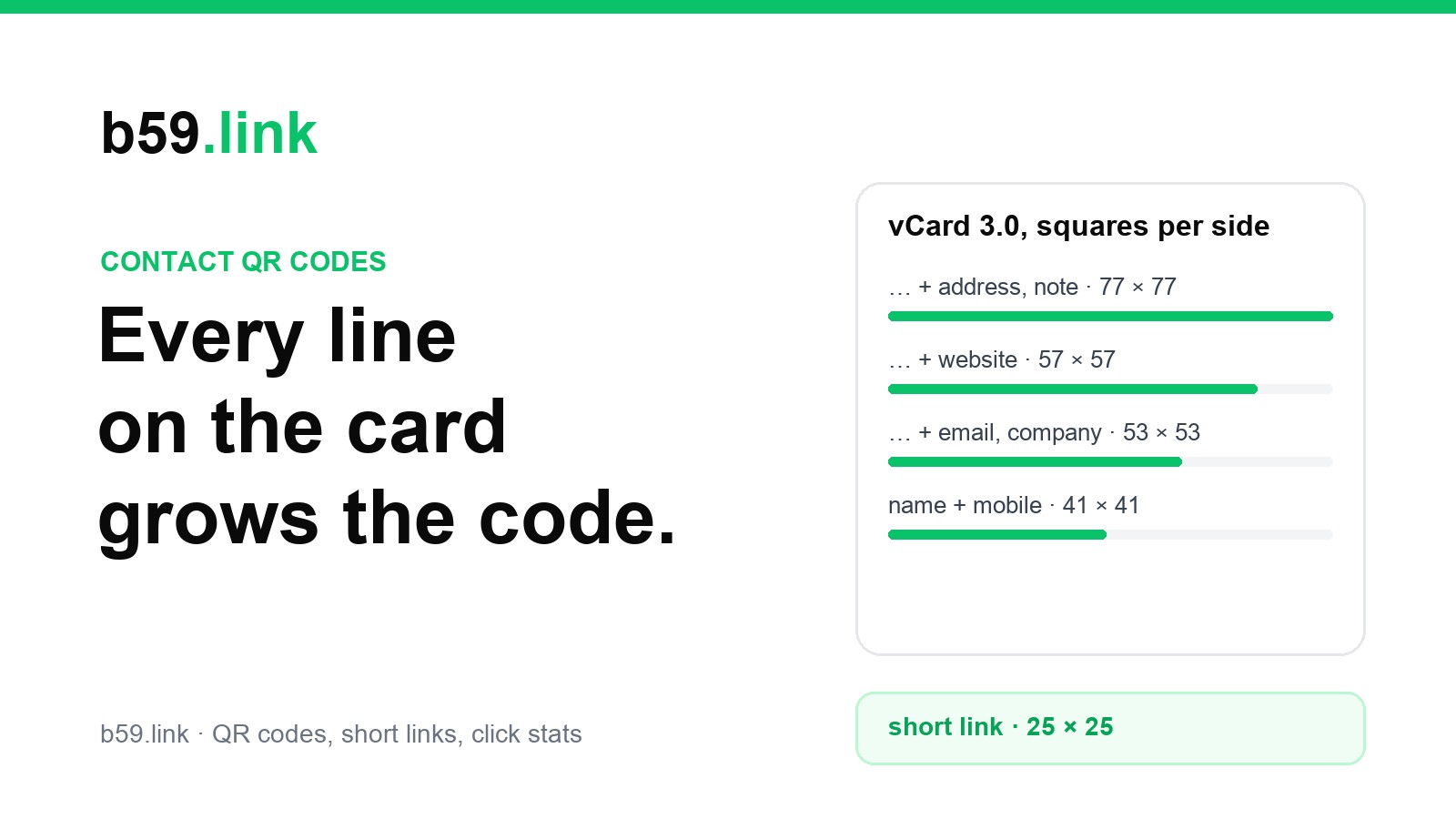
A QR code is a grid of squares, and its size steps up as the text gets longer. We added Dana's details one line at a time and encoded each version at medium error correction, the usual default:
Two things stand out. The job title cost nothing here, because the text still fitted the same grid; sometimes a line is free, and the next one costs a whole step. And the address and note together add as much as everything else combined. The card already shows your address in print, so the code doesn't need it.
Will it fit on the card?
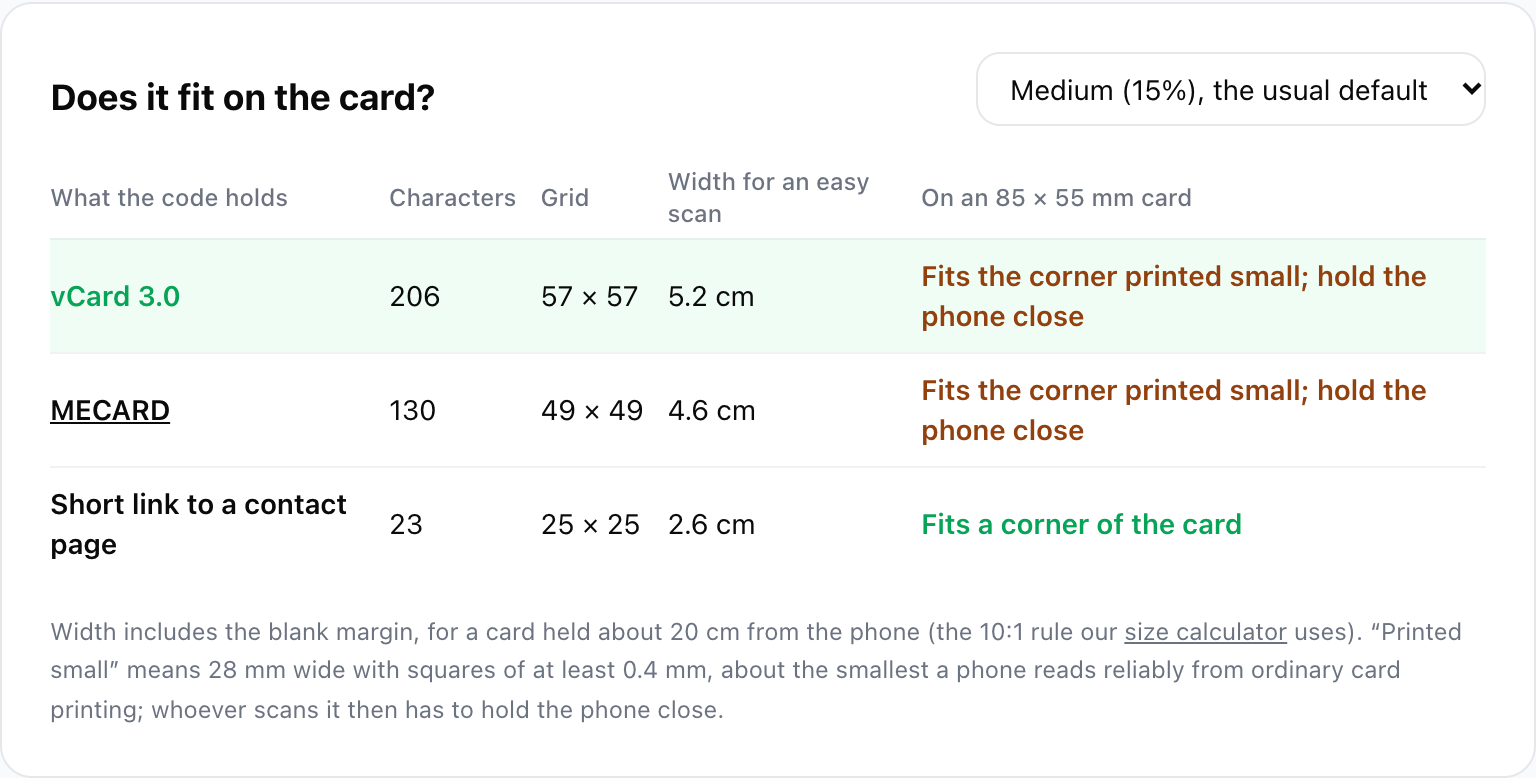
A card is held close, about 20 cm from the phone. Our print size calculator uses a rule of roughly a tenth of the scan distance for a simple code, scaled up for denser ones, and the code needs a blank margin four squares wide on every side. On that rule, Dana's six-line vCard (57 × 57) wants about 5.2 cm including the margin. The card is 5.5 cm tall.
Of course nobody gives a QR code most of a card. Say you give it a corner, 28 mm across including the margin. Then what matters is how big each square comes out:
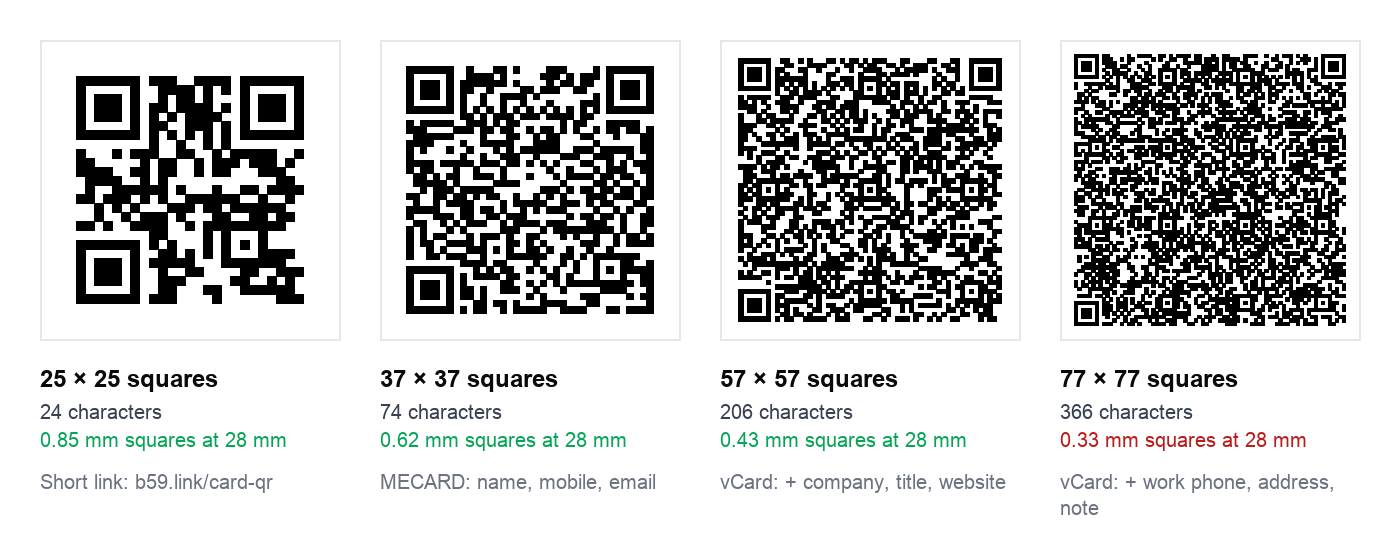
Below about 0.4 mm a square starts to blur in ordinary card printing, especially on textured or uncoated stock, and older phone cameras struggle to separate the squares. For comparison, GS1 doesn't let the codes on retail packaging go below 0.396 mm per square, and those are printed by people who check every run. A 0.43 mm vCard in a corner will scan if you hold the phone close and steady; 0.33 mm is asking for trouble.
So, roughly: a name, mobile and email fit happily in either format. Company, title and website in a vCard fit if you print carefully and the person scanning leans in. Add the address and a note and you need a whole side of the card.
The other option: a short link to a contact page
There's a third thing a card's code can hold: a short web address that opens a page with your details and a "Save contact" button that downloads your .vcf file. The code stays at 25 × 25 squares however much you put on the page.
It has a bigger advantage than size. A vCard in a printed code is frozen. Change jobs, numbers or email addresses and the box of 500 cards keeps handing out the old ones. A short link points wherever you tell it, so you update the page and every card already out there is correct again.
What it costs:
A connection. The person scanning needs data or Wi-Fi to open the page. In a basement conference hall that's a real objection; a vCard saves offline.
One more tap. Scan, open the page, tap "Save contact", then the phone's own save screen, instead of scan and save.
Somewhere to keep the page. Your own site is best. And if the short link comes from a service, it should be one that doesn't stop forwarding when a trial ends; we decoded 77 sample codes from QR generator websites and most held the generator's own redirect, not the destination. A b59.link short link is a plain redirect with no plan to lapse, and it shows how many people scanned.
Our rule of thumb: if the card's details will be right for as long as you hand it out, and you only need name, number and email, put a vCard on it. If you'd want title, company, website and address, or the details might change before the box runs out, use a short link.
Before you order the box
Scan the printed proof, not the file. Use an iPhone and an Android phone, save the contact on each, and open it: check the first and last name are the right way round, the company and title landed in their own fields, and the number dials. Try it under the light where you'll actually hand the card over, and try it with the phone held at a normal distance, not pressed against the card.
And check the code is the one you think it is. Designers often reuse a code from an earlier card or a generator's sample; our QR checker reads a photo of the code in your browser and shows exactly what's inside.
We built a contact QR tool for this: type your details and it shows the vCard and MECARD versions side by side, how many characters each line adds, whether the code fits on an 85 × 55 mm card, and how a short link compares. It draws the code and the .vcf file in your browser, so none of your details are sent anywhere. If the code is going on a poster or a sign instead, Printing a QR code that scans covers size and distance in more depth.
Sources: IETF RFC 2426 (vCard 3.0: required VERSION, N and FN; the ADR parts; escaping commas, semicolons and backslashes in text values) and RFC 6350 (vCard 4.0); ZXing project, Barcode Contents (MECARD and vCard in QR codes) and the AddressBookDoCoMoResultParser source (MECARD fields read, ORG as an addition, TEL-AV and NICKNAME unsupported, last,first name order); Apple Developer Forums, QRCode for vCard (a vCard that imported partly, traced in the end to a blurry print); GS1 General Specifications (0.396 mm smallest square for QR codes on retail packaging). Character counts, grid sizes and square sizes are our own, worked out with the encoder our tools use. Dana Whitfield and her business are invented; 555-01xx numbers are reserved for fiction.
See your contact as vCard and MECARD side by side, with the grid size and whether it fits on the card. Drawn in your browser.
Make a contact QR code