Every café, rental flat and dentist's waiting room has the same little card: a network name, a password like Xk7#mPq2!harbour, and a queue of people typing it wrong. A QR code fixes that. The guest points the camera at it, taps once, and they're on. Nobody reads anything aloud.
It also fails in ways a card doesn't. A semicolon in the password, a name typed with the wrong capital letter, a code printed the size of a stamp on a wall across the room: each one gives you a code that looks fine and does nothing. This is what's inside a Wi-Fi code, the characters that break it, and where the sign should go.
What's inside a Wi-Fi QR code
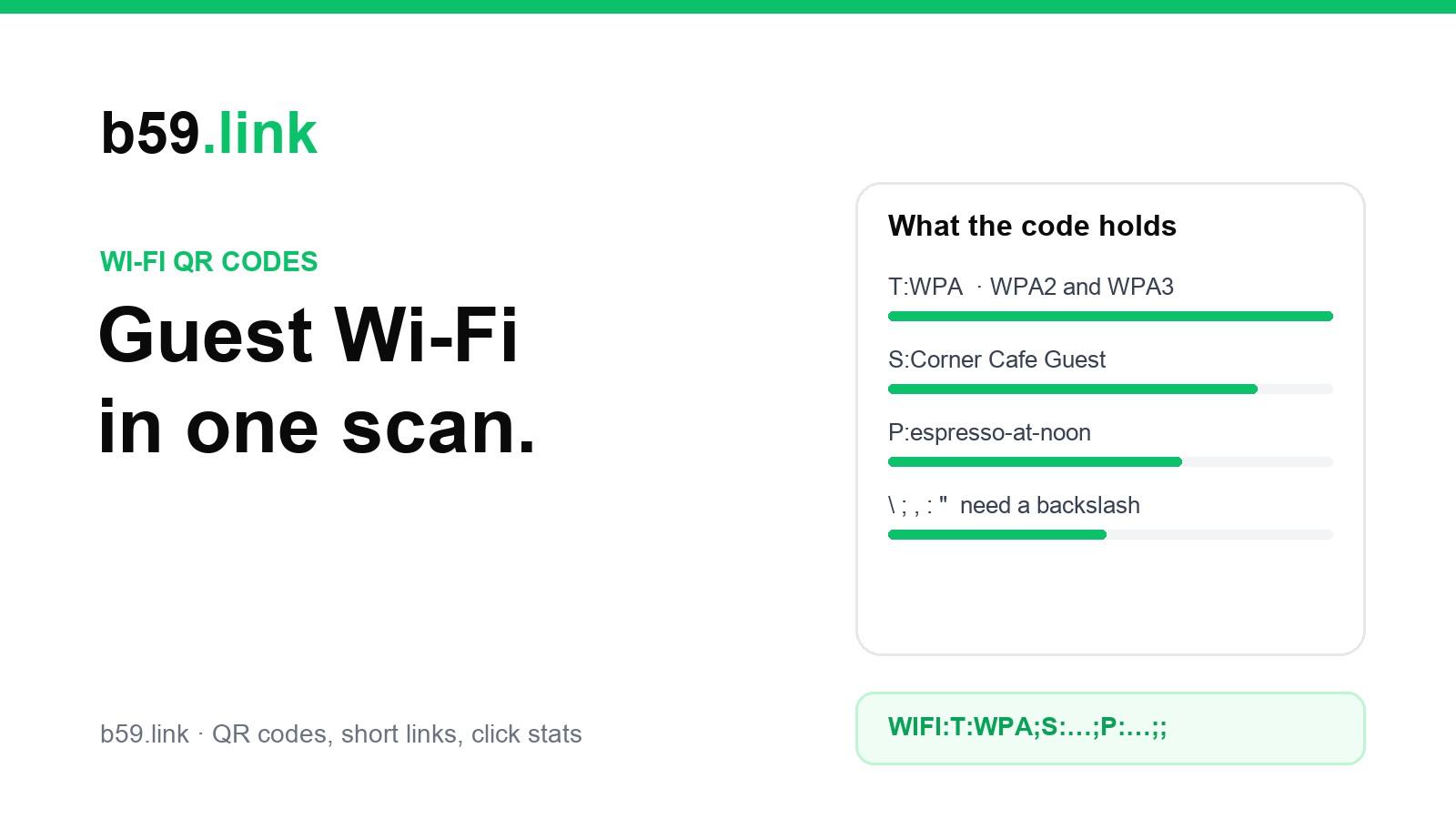
Not a link. A Wi-Fi code holds a short piece of text that starts with WIFI:, followed by the network's details, each ending with a semicolon:
The format comes from ZXing, the open-source barcode library that early Android phones scanned with. It was never a formal standard, but it's what the iPhone camera and Android's scanner look for when they offer to join a network, so it's the one to use. Android's own Settings app builds its sharing codes the same way, with the fields in the order S, T, P, H; the order doesn't matter.
T is the security type. It has three values that phones recognise:
There's no T:WPA2 or T:WPA3. WPA means "a network with a password" and the phone works out the rest when it connects. Android writes T:SAE when it shares a network that only accepts WPA3, and the WPA3 specification itself says to use WPA there too, so if you're making one code by hand, WPA is the safe choice.
S is the network name, exactly as phones list it. Capitals, spaces and the hyphen in Cafe-Guest all count; corner cafe guest is a different network.
P is the password. H:true marks a hidden network (more on that below). If T is missing, the ZXing library treats the network as open and ignores the password, which is why a hand-typed code that skips it can fail.
The characters that break it
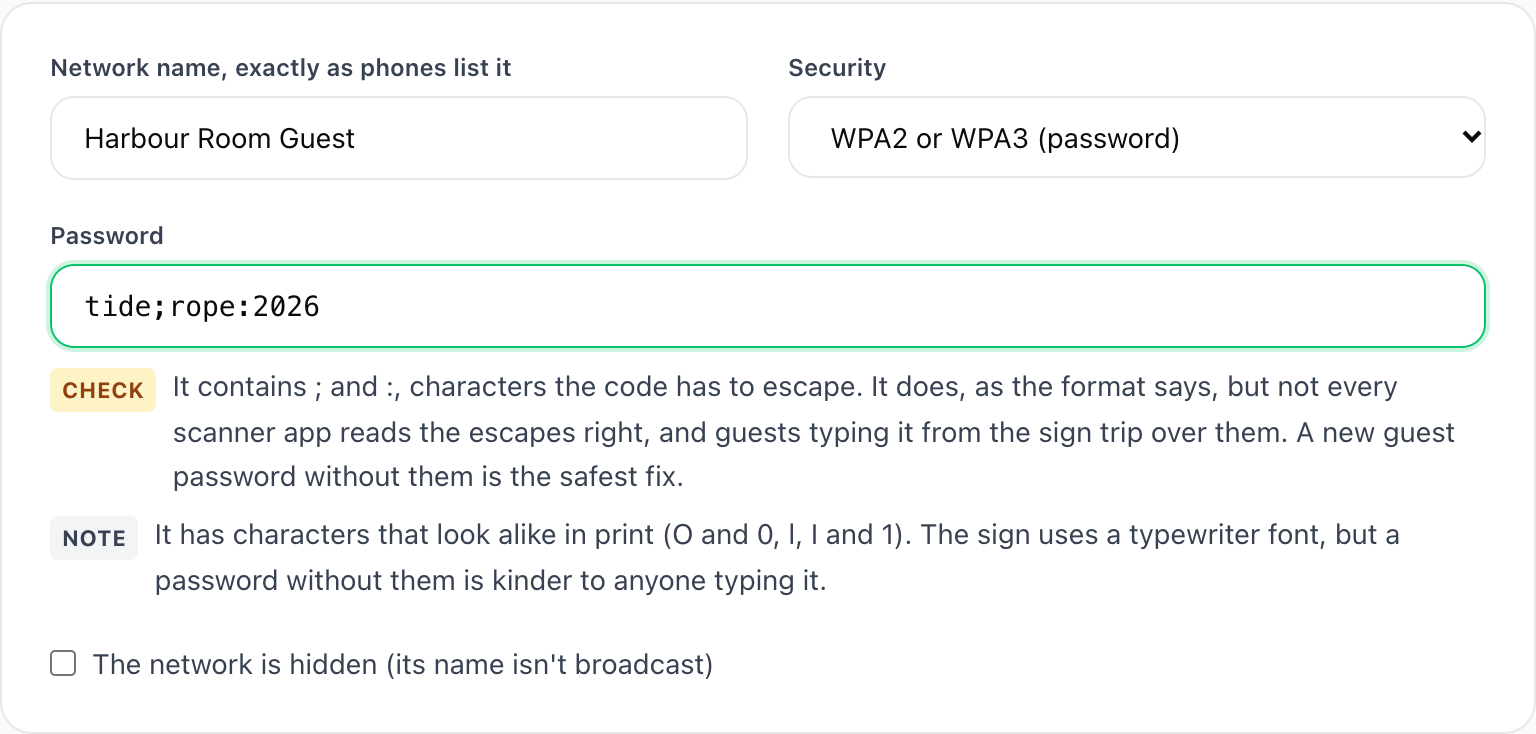
Semicolons end a field. So what happens when the password contains one? The format's answer is a backslash in front of five characters: \, ;, ,, : and ". A network called Joe's; Bar with the password tide;rope:2026 has to be written like this:
Get it wrong and the phone reads the password as tide, or the network name as Joe's, and the join fails with a vague "Unable to join" message. Most generators handle the escaping. Some don't, and you can't tell by looking at the code.
Even done right, those characters are a risk, for two reasons:
Not everyone agrees on the escapes. Android's own sharing code puts a backslash before four of the five characters (not the double quote). The WPA3 specification describes a different scheme for these characters, using percent signs (%3B for a semicolon), and at least one developer who tested it found that Android doesn't decode that form when scanning. Two rules for the same characters means some app, somewhere, reads your code differently.
People still type the password. Laptops don't have a camera pointed at the counter, and some phones won't cooperate. Whoever types tide;rope:2026 from a sign will fumble the semicolon, and the colon, and wonder whether that's a zero or a capital O.
So the honest fix isn't better escaping. Give the guest network a password without \ ; , : ". Four or five ordinary words with hyphens (tide-and-rope-2026) are long enough to be safe, easy to read off a sign, and scan the same in every app.
While you're at it, check three other things that stop a join:
Length. A WPA password is 8 to 63 characters. A 64-character string of hex digits isn't a password at all; it's the raw key, and it works only if that's how the router has it.
Plain keyboard characters only. A password copied from a Word document can pick up curly quotes or a long dash that look right and aren't the characters the router has. Network names can hold accents and emoji (they're stored as UTF-8), but test those on an older phone.
Spaces at either end. Corner Cafe Guest with a trailing space is a different network. Copy the name from the router's settings page rather than retyping it.
What phones do when they scan it
iPhone. The Camera app has read QR codes since iOS 11. Point it at a Wi-Fi code and a yellow "Join Network" button appears; one tap and it's joined. Since iOS 18 an iPhone can also make these codes itself: in the Passwords app, open Wi-Fi, pick a network and tap Show Network QR Code.
Android. On Android 10 and later, the camera or Google Lens offers to connect, and the Wi-Fi settings page has a small scan icon next to "Add network". Going the other way, Settings, Wi-Fi, the network, Share shows a code after you unlock the phone, which is handy for checking what your own phone thinks the network is called.
Both save the network like any other. That matters later: when you change the guest password, every phone that saved the old one fails quietly next time, and so does the old sign. Change the password and reprint on the same day.
WPA, open or hidden?
WPA2 or WPA3 with a password is the right answer for almost everyone. If your router offers "WPA2/WPA3 Transitional" mode, use it: new phones get WPA3, older ones still join. That's also what Apple recommends for compatibility.
Open (no password) is a real option for a busy café. Anyone in range can join without the sign, and unless the router supports Enhanced Open (OWE), traffic between the phone and the router isn't encrypted over the air. The QR code then just saves people a tap in their settings.
Hidden networks don't need to be hidden. Apple's router advice is direct: "Hiding the network name doesn't conceal the network from detection or secure it against unauthorized access." Worse, a phone that has joined a hidden network keeps calling out its name wherever it goes, so it can actually make guests easier to track. For a guest network that's on a sign anyway, there's no upside. Turn hiding off and leave H: out of the code.
WEP was broken many years ago and newer phones may refuse it. If the router still offers only WEP for its guest network, the router is the problem, not the code.
A guest network, not your main one
A printed password is a public password. Anyone who photographs the sign has it, and the code holds it in plain text: scan it with any QR app and the password is right there. That's fine for a guest network and a bad idea for the network your till, card reader, printer and cameras sit on.
Most routers made in the last ten years can run a separate guest network. Turn it on, and look for a setting usually called "AP isolation", "client isolation" or "allow guests to see each other" (set it so they can't). Guests get the internet and nothing else. Some routers also let you cap guest bandwidth, which keeps one person's video call from slowing the card reader.
Where the sign goes, and how big
A QR code has to be big enough for the distance people scan it from. Our usual rule is about a tenth of the distance for a simple code, and a Wi-Fi code is a little denser than that. The example above is 51 characters, which makes a 33 × 33 grid. With the blank margin it needs on every side, the smallest sizes that scan comfortably are:
Those are minimums; bigger always scans. A long network name or password makes the grid denser, so check your own text with the print size calculator, or let the Wi-Fi sign tool below do it. We explain where the tenth-of-the-distance rule comes from, and why turning error correction up can make a code harder to scan, in Printing a QR code that scans.
A few things about placement that matter as much as size:
Where people already stand. At the counter while they wait, on the table where they sit, inside the door of the rental flat next to the house rules. A sign behind the till that people have to lean over won't get scanned.
Matte, not glossy. Lamination is sensible on a counter; a glossy finish under shop lights puts a white streak across the code. Ask for matte, or put the sign in a frame without glass.
Dark squares on a light background, with the blank margin left empty. Don't let the café logo or a border run into it.
The password in text, too. Laptops can't scan the sign, and neither can the guest whose camera refuses. Print the network name and password under the code, in a font where 0 and O look different.
Test it before it goes out
Take the printed sign, not the file on your screen, and scan it with an iPhone and an Android phone that have never joined this network (or tell them to forget it first). Check the join actually completes and the phone loads a web page; a code with a wrong password still shows the "Join" button. Then stand where guests will stand and try it from there.
Finally, put a reminder in your calendar for the next password change, with "reprint the Wi-Fi sign" in it.
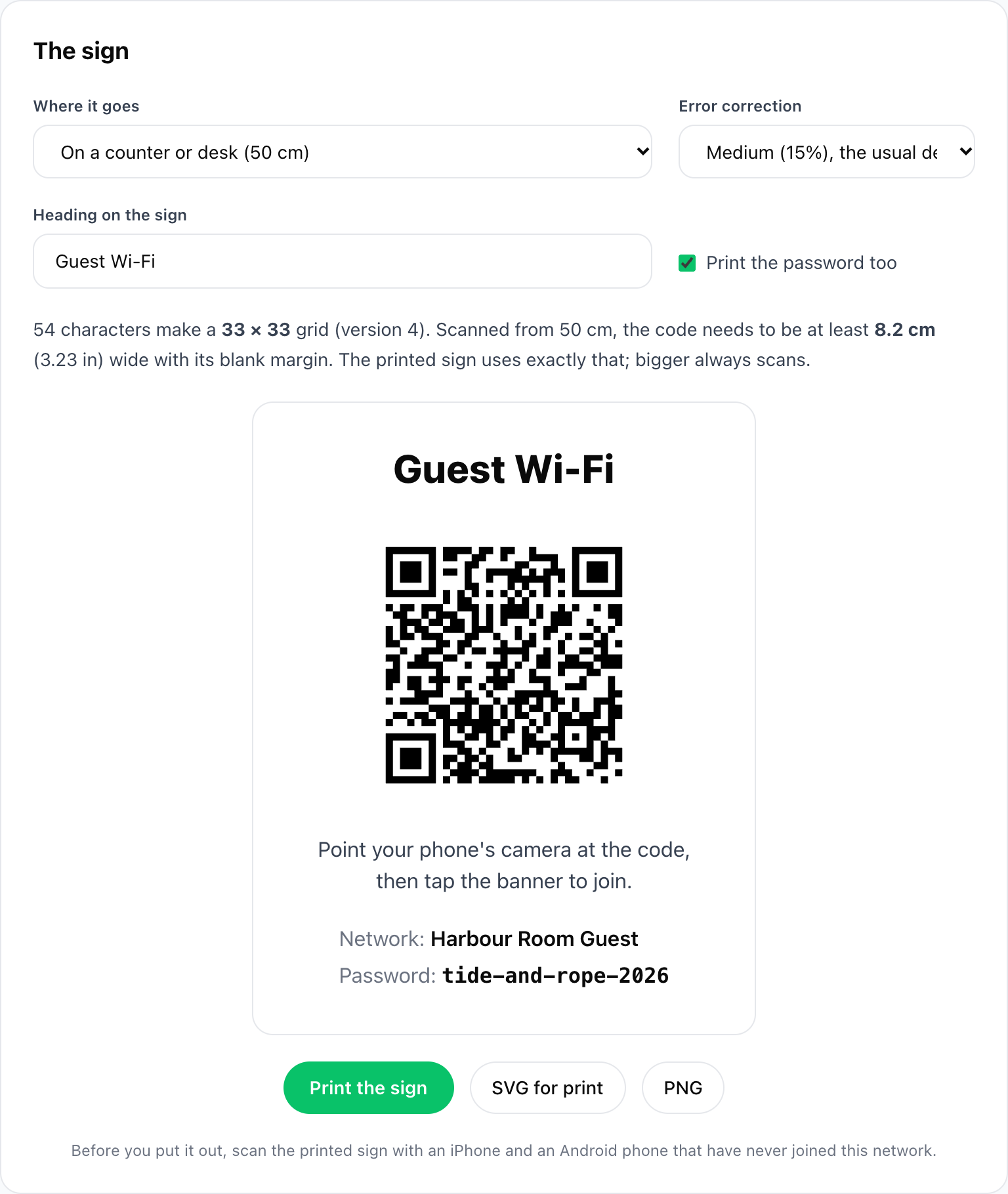
We built a guest Wi-Fi sign tool that does all of the above in one place: it checks the name and password for the characters and lengths that break a code, warns about hidden and WEP networks, draws the code at the size your sign needs and prints the sign. The code is drawn in your browser, so the password isn't sent to us or anyone else. That's worth asking of any Wi-Fi code generator, since most of them send what you type to their server to draw the image. If you're curious what else generators put in their codes, we decoded 77 sample codes from generator websites.
Sources: ZXing project, Barcode Contents (the WIFI: format, its fields and the backslash escapes) and the ZXing WifiResultParser source (fields read, T defaulting to nopass); Android Open Source Project, Settings app WifiNetworkConfig.java and WifiQrCode.java (the share code's field order, the four escaped characters and the WPA, WEP, SAE and nopass values); Steve's blog, Most WPA3 WiFi QR Codes are broken (January 2026; the WPA3 specification's percent-encoding and T:WPA rule, Android's handling); Apple Support, Recommended settings for Wi-Fi routers and access points (WPA2/WPA3 Transitional, the quotation on hidden networks); AppleInsider on sharing a Wi-Fi QR code in iOS 18. Grid sizes and print widths are our own, worked out with the encoder our tools use.
Make a guest Wi-Fi sign that scans: name and password checked, code sized for where it hangs, drawn in your browser.
Make the Wi-Fi sign