The code on a museum label or a trail post gets scanned in the worst conditions a QR code ever meets. Inside, the room is dim on purpose and the walls are thick; outside, the stop is at the bottom of a valley, behind a church, or at the far end of a pier where the phone shows one bar. The visitor is standing, often holding something else, and will give the page a few seconds before they put the phone away and look at the thing itself, which is what they came for.
So the page behind the code has one job: open fast on a bad connection and give them something worth the scan. This guide covers what to put on it, how small it can be (we built a sample stop page and weighed it), audio that starts playing before it has finished downloading, what to do when there's no signal at all, how to mount the code on a plinth or a post, and how to count which stops people actually scan.
First: most visitors won't scan, and that's fine
It's worth knowing the numbers before you print fifty labels. Kera Collective, a museum evaluation firm, looked back at seven exhibition evaluations from the past five years that asked about QR codes: in six of them, 8% of visitors or fewer said they had used any QR code in the exhibition. The reasons visitors gave were plain. Many come to a museum partly to get off their phones; long videos and text-heavy pages pull them away from the room; and they skip a code when the label doesn't say what it leads to. The exhibition that did best put the core story on the wall label and used the codes for extra background.
That's the model to copy. The label or the panel carries the essential text on its own. The code adds what print can't: a voice, an old photograph, a longer story for the few who want it. A visitor who never scans should miss nothing important, and a visitor who does should get it in seconds.
What visitors want at a stop
Three things, roughly in the order they reach for them:
- A short text, 100 to 200 words, that adds something to what's in front of them. Not the label again.
- Audio, one to three minutes, for people who'd rather keep their eyes on the object or the view. It also helps visitors with low vision, and anyone who left their reading glasses in the car.
- One picture the place can't show any more: the building in 1880, the painting before restoration, the other side of the coin.
Plus the plumbing: which stop this is, the next and previous stops, and a link to the whole tour. Leave out the site menu, the cookie banner, the newsletter pop-up and the web font. Each of those costs bytes, seconds and attention on one bar of signal.
How small the page can be: our test
We wrote a complete stop page for an imaginary heritage trail (title, a short text, an audio player, one photo, links to the next and previous stops) and weighed it. Here's the whole thing, minus the text paragraphs:
With three paragraphs of text the HTML is 1,522 bytes, 861 bytes gzipped. The photo is the heavy part, so we resized three ordinary 1920-pixel photographs and saved them a few ways:
So a full stop page, text and photo, comes to about 30 KB. The audio doesn't count yet, because preload="none" tells the browser not to fetch any of it until the visitor presses play. For comparison, the HTTP Archive's 2024 Web Almanac puts the median mobile web page at 2,311 KB, about 75 times more.
What that means on a weak signal, counting transfer time only (each request adds latency on top, which on a bad connection can be a second or two):
Nobody waits 47 seconds at a trail post. Everyone waits under one. That difference is almost entirely made by what you leave out: a page built inside a museum's main site template often carries the full navigation, fonts, scripts and tracking of the home page, and that's where the megabytes are. A plain page per stop, or a separate tiny tour site, avoids it.
Audio that streams
Spoken word doesn't need music-quality files. The size of an audio file is simply its bitrate times its length:
The visitor never waits for the full download, though, if the file can stream: a 64 kbit/s file over a 400 kbit/s connection plays as it arrives, after a second or two of buffering. That works as long as the bitrate stays well under the connection speed, which is the case for mono speech and isn't always for a 128 kbit/s stereo export, and as long as your web server answers range requests (Accept-Ranges: bytes), which most static hosting does and which lets the visitor skip ahead. MP3 at 64 kbit/s mono plays everywhere; Opus is half the size and plays in current browsers, but MP3 is the safe default for older phones.
Three more things that matter at a stop:
- Say the length on the page ('2 min 10 s') so people know what they're signing up for.
- Offer a download link for those who want to save the stop while they have signal.
- Publish the words as text too. WCAG 1.2.1 asks for a transcript for prerecorded audio at level A, it helps deaf and hard-of-hearing visitors, and it's what people read in a noisy room. For museums run by US state or local governments, the Justice Department's 2024 rule under ADA Title II requires WCAG 2.1 AA for web content; in April 2026 it moved the deadlines to 26 April 2027 for places with 50,000 or more people and 26 April 2028 for smaller ones and special districts.
When there's no signal at all
Some stops will be in a dead spot whatever you do: a cellar, a gorge, a castle with three-metre walls. Plan for it:
- A whole-tour page that holds every stop's text and pictures on one page (12 stops at about 31 KB each is under 400 KB). Put its code on the leaflet, the ticket and the board at the start, where there's Wi-Fi or a signal, and say 'open this before you set off'. Once it's open in the browser it stays readable even when the connection drops.
- Downloadable audio, one file per stop or one for the whole tour, linked from that page.
- For a web developer: a small service worker that caches every stop page on the first visit makes the whole tour work offline afterwards, without an app. It's a few dozen lines of JavaScript using the Cache API.
- Free Wi-Fi at the entrance if it's your building. Our guest Wi-Fi QR code guide covers the sign.
- And the label itself, which works with no signal at all. Another reason it should stand on its own.
Mounting the code: plinths, walls and posts
The code has to be read by a phone camera, often in poor light, at whatever angle the visitor happens to hold it. A few rules from exhibition and trail sign guidance, plus our own printing advice:
The 10:1 rule (the code at least a tenth as wide as the scan distance) is explained in our printing guide, and it assumes a short address; a long one makes a denser code that needs printing bigger. The heights and angles come from the US Forest Service's exhibit accessibility checklist and interpretive media guidelines, which are a good free reference for anyone without an exhibition designer.
Light is the other half. Galleries with light-sensitive works are often kept at around 50 lux, a fraction of a bright office, and phone cameras struggle with low-contrast codes in dim light. Print black on white or very close to it, matte, with a full quiet zone around it; our test of coloured codes and logos found dim light is exactly where pale and inverted codes fail first. Outdoors, choose a laminate or engraved panel that won't fade in the sun, and don't put the code where it catches glare at the time of day most people pass.
Say on the label what the code gives: 'Hear the miller's granddaughter (2 min)' gets scanned; a bare code with no words mostly doesn't, as Kera Collective's visitors said. And print the short address under it for people who'd rather type.
One link per stop, so you can count
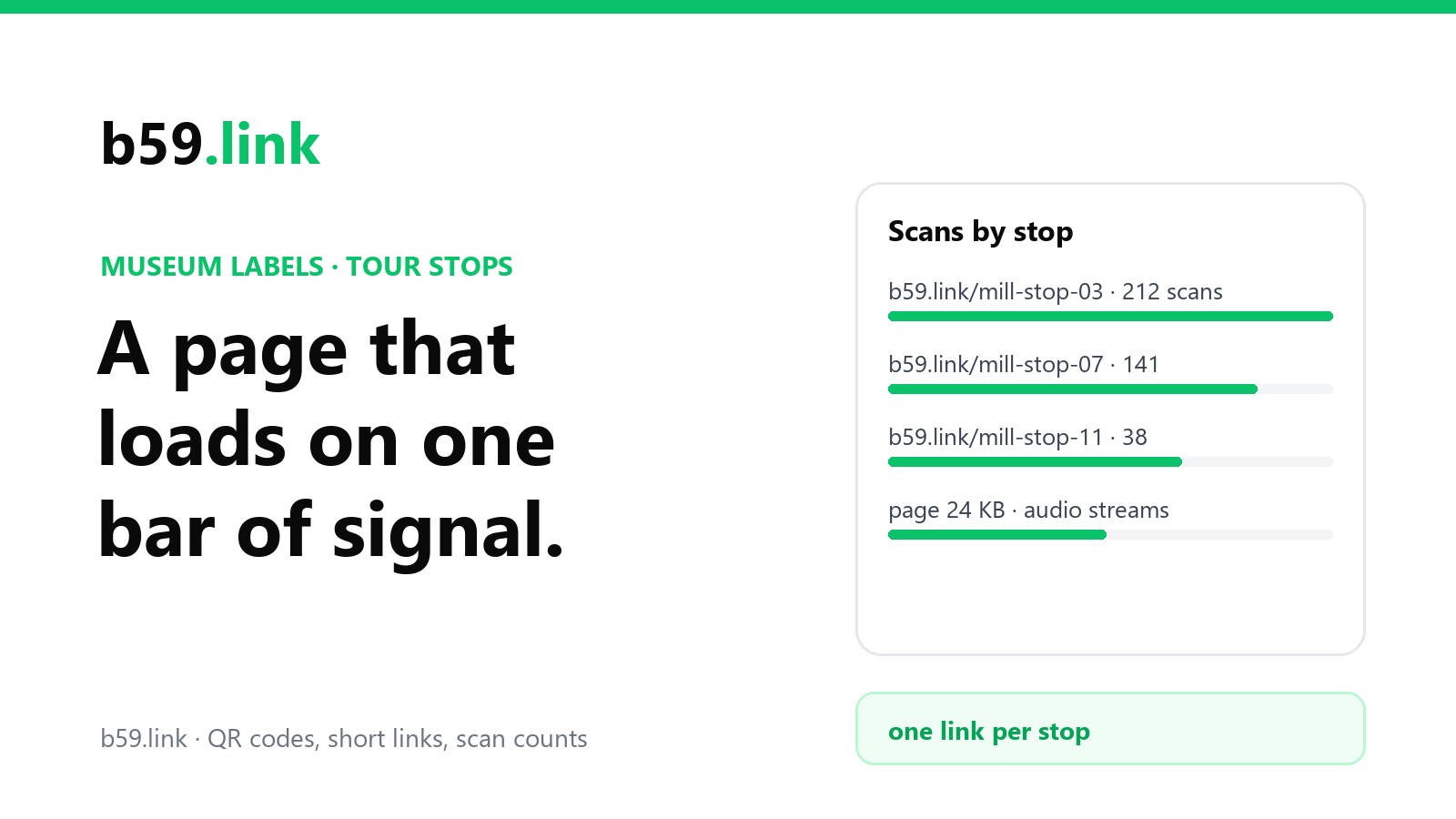
Give every stop its own short link, b59.link/mill-stop-01 to mill-stop-12, and print the code for that link on the label. Each one points at its own page. The scan counts then show you something no visitor survey will:
Read it the way you'd read a drop-off chart. Here the big fall comes between stops 7 and 9, so either people stop following the trail there (is the path clear? is stop 8 hard to find?) or the content stops earning scans. A stop with fewer scans than both its neighbours probably has a code that's hard to read or a label that doesn't say what's behind it. A count isn't a head count, since a family may share one phone and someone may scan twice, but the shape from stop to stop is real. The same idea at a smaller scale is in one short link per flyer, post and podcast.
Make one short link per stop, get the QR code for each, count the scans stop by stop and change what any stop opens without reprinting the label.
Make your tour linksChanging content without reprinting
Labels and panels are expensive to replace, and the content behind them changes: a new recording, a correction from a local historian, a temporary exhibition, a translation. Because the code holds your short link and not the page address, you change where the link points and every printed code follows. The same goes for moving the tour from one website to another, which happens more often than anyone plans.
Two habits keep it working for years:
- Keep a register of every code: stop number, where it's mounted, the short link it holds and the page that link should open. When you walk the route, check each code still opens the right thing.
- Look at the codes themselves. Outdoor posts are an easy target for someone sticking a fake code over yours, which we covered in fake QR code stickers. A stop whose scans suddenly drop to zero is worth a walk.
Sources
- Katie Chandler, Kera Collective, 'Think Twice Before Adding that QR Code in Your Exhibition' (seven exhibition evaluations).
- HTTP Archive, Web Almanac 2024, 'Page Weight' chapter (median mobile page 2,311 KB, October 2024 crawl).
- DebugBear, 'Chrome DevTools network throttling' (Slow 4G about 1.44 Mbit/s) and Chrome DevTools' 3G preset (400 kbit/s).
- Our own test, 21 October 2026: sample stop page weighed raw and gzipped; three 1920-pixel photographs resized and saved with Pillow as JPEG and WebP.
- W3C, WCAG 2.1, Success Criterion 1.2.1 Audio-only and Video-only (Prerecorded).
- US Department of Justice, ADA Title II web and mobile accessibility rule (2024) and interim final rule extending compliance dates (April 2026).
- USDA Forest Service, 'Exhibit Accessibility Checklist' (wall label heights 43-67 in) and 'Interpretive Media Design Guidelines' (signs angled 30-45 degrees toward viewers).
- MDN Web Docs, <audio> element (preload) and HTTP range requests.