A customer says the haircut was the best they've had in years. You say "it would mean a lot if you left us a review on Google". They mean to. Later they open Maps, type your name, pick the right branch out of three, scroll past the photos, find the Reviews tab and look for the button. Somewhere around the third step the bus arrives.
A review code skips all of that. One scan, and the phone opens your listing with the star box already open. This guide covers the link that does it, where to print it so people actually scan it, and the rules that can cost a shop its reviews.
The link that opens the review box
There are two ways to get it. Use the first if you can sign in to your Business Profile.
Google's own share link. Sign in to your Business Profile, choose Read reviews, then Get more reviews. Google shows a short link you can copy, and a QR code. Google's help page says the QR code can only be made from a computer browser, not on a phone, so do this at a desk. Right-click the code and save it as an image. The link is a short Google address, usually starting with g.page/r/. Google doesn't publish its format, so copy it rather than typing it out.
The place ID link. Every place on Google Maps has a place ID, a string like ChIJN1t_tDeuEmsRUsoyG83frY4 (that one is Google's office in Sydney, the example Google itself uses). Put it on the end of this address:
Open that on a phone and it goes straight to the review form for that place. This form isn't in Google's documentation either; it's the address the review button itself has used for years, and it still answered normally when we tried it on 15 October 2026. It's useful when the profile's owner login is with someone who left, or when you want to see which ID you're actually linking to.
To find the ID, open Google's Place ID Finder (search for that name on developers.google.com), type your business name and pick it on the map. Check the address under the name. Businesses with similar names in the same town get mixed up all the time, and a code that sends your customers to review the place down the road is worse than no code.
Test it on two phones before printing anything
Scan the link with an iPhone and an Android phone, ideally ones that aren't yours. A few things will show up:
- Signed in to Google: the star box opens over your listing. This is what most Android users will see.
- Not signed in: Google asks them to sign in first. Many iPhone users meet this step. You can't skip it, but it's worth knowing so you don't think the code is broken.
- The Maps app installed: some phones open the app instead of the browser. The box should still open; if it opens the listing without the box, the review button is one tap away.
Check that the name at the top is yours, with your street. Then you're ready to print.
Where people actually scan it
Shops usually put the review code where they put everything else: on the door, by the till, on a sign by the exit. It's the worst spot. People walking out are holding bags, looking for keys, or already on the next errand. And the review they'd write at that moment is the shortest one they'll ever write.
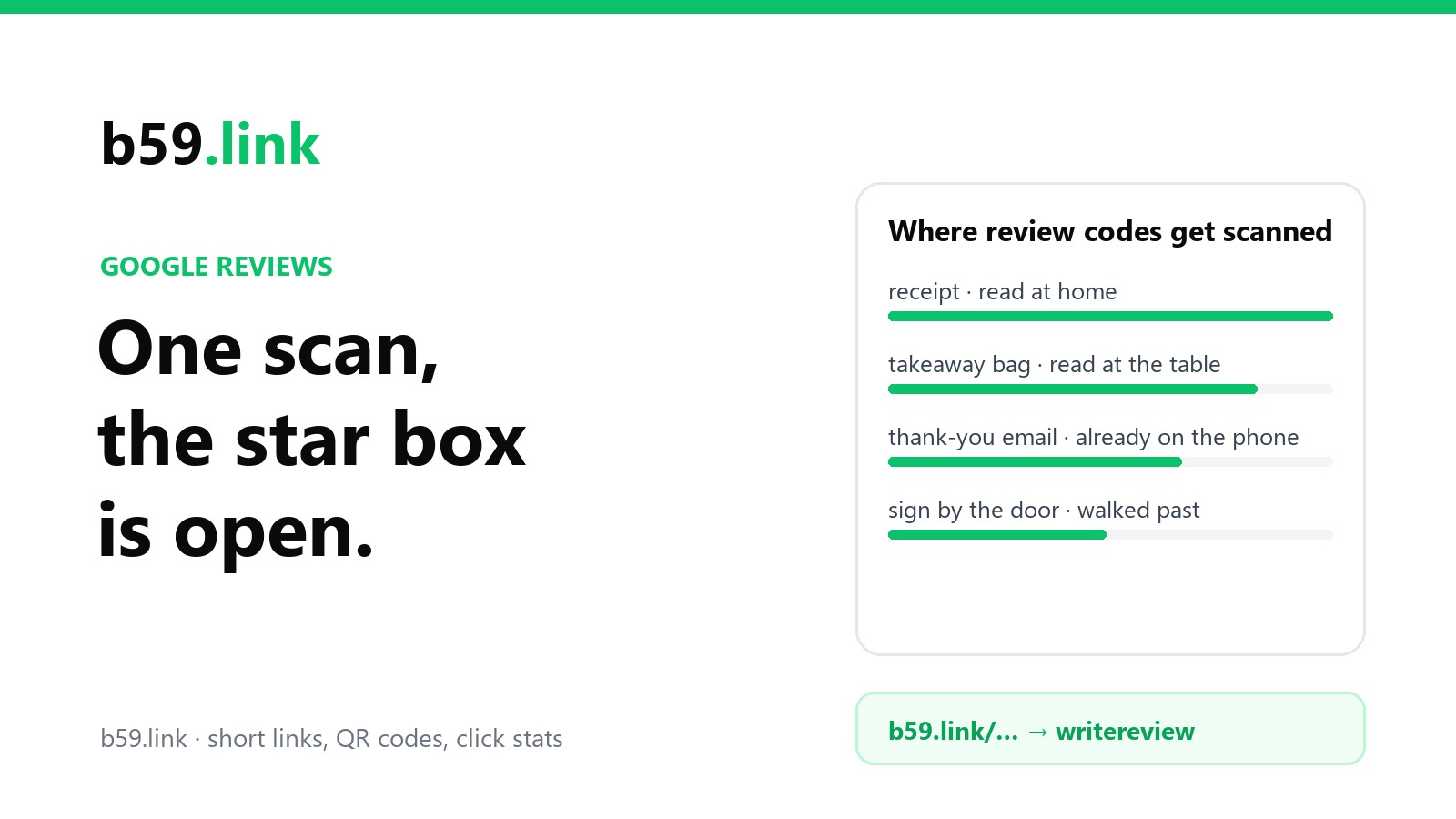
Reviews get written later, when the customer is sitting down with the thing they bought. So put the code where it'll be when they get home:
- The receipt. Most till systems can print an image or a QR code at the foot of the receipt. Google's own help page suggests receipts.
- The bag or box. A sticker on a takeaway bag, a card in a delivery box, a tag on an alteration. It's with them when they're eating, unpacking or trying it on.
- The thank-you email or text after an appointment or an order. Here the plain link works better than a code, because they're already on the phone.
- The invoice for trades and services. A plumber's invoice is read at the kitchen table, which is exactly where the review gets written.
A code at the counter is allowed. Google's own help page suggests printing it and putting it up in the shop. What Google forbids is pressure on the spot: its policy says merchants "should not require or pressure users to leave ratings or write reviews while on the premises." Handing a customer a tablet with the review form open, or waiting for them to finish before they leave, crosses that line. A sign they can ignore doesn't.
The rules that can cost you every review
Google's Maps content policy is short on this, and it's enforced. Google can remove reviews it thinks were bought, and can stop a profile from receiving new ones for a while. Four rules matter for a review card:
No reward for a review. Merchants may not offer "payment, discounts, free goods and/or services in exchange for posting any review or revision or removal of a negative review". That rules out "10% off your next visit for a review", a free coffee, and entry into a prize draw. The same goes for the review you'd most like to fix: offering something to get a bad review changed or taken down is banned too.
Ask everyone, not just happy customers. Merchants may not "selectively solicit positive reviews from customers". This is called review gating. A card that asks "Happy? Review us on Google. Not happy? Tell us here" is the classic case, and so is a page that shows the Google link only to people who clicked a smiley face. The same card goes in every bag.
No quotas for staff, and no scripts. The policy bans asking staff to collect a set number of reviews, and asking for reviews that include specific content, including a staff member's name. "Mention Sam if Sam helped you!" on a card is out.
The law may say the same. In the US, the FTC's rule on consumer reviews, in force since October 2024, makes it illegal to offer anything for a review that must be positive or negative. The UK banned buying fake reviews and hiding real ones in April 2025. Google's rule is stricter than both, since it covers any reward at all, so following Google covers you here too.
Neutral wording works fine and keeps you safe: "How did we do? Tell us on Google" or "Your review helps other people find us." Don't ask for five stars on the card.
How big to print it
A receipt, a bag sticker and a business card are all read from about 25 cm, so a code 2 to 2.5 cm wide will scan if it's printed sharply. Thermal till printers smudge fine detail, so on a receipt give the code at least 3 cm, and test it on a printed receipt, not on the screen. The quiet border around the code matters as much as the size. Our guide on printing a QR code that scans covers the sizes for signs and posters too.
Put one short line next to the code, so people know what it opens before they scan. A bare code on a receipt looks like a loyalty scheme or a survey, and people skip both.
Counting scans, and why the code should hold a short link
Google's QR code goes straight to Google, which is simple, and there's nothing in the middle that could break. But you can't see how many people scanned it, or which code they used, and you can't change it later.
Google's own documentation says place IDs "may change due to updates on the Google Maps database", and it tells developers to refresh any ID older than a year. Most never change. But if you move premises, merge two listings or have your profile rebuilt, a code holding the old ID points nowhere, and it's printed on five thousand bags.
A short link in the code fixes both. Make a short link to your review link, and draw the QR code from the short link. The code holds b59.link/…, and the short link forwards to Google. If the review address changes, you change where the short link goes, and every printed bag follows.
Make one short link per place you print it: one for receipts, one for bags, one for the thank-you email. All of them point to the same review link, and each counts its own visits, so after a month you know which one is doing the work. It's the same idea as one short link per flyer, post and podcast.
Bear in mind what the counts are. A scan is a visit to the review form, not a review. Some people scan and close it, some sign in later. Compare each month's scans with the reviews that arrived in your profile in the same month, and you'll get a rough idea of how many scans become reviews, and whether moving the code from the counter to the bag made a difference.
The short version
Copy the review link from your Business Profile (Read reviews, Get more reviews) or build it from your place ID, and test it on two phones. Put it in a short link so you can count scans and change the destination later, and print the code where people will be when they have time: the receipt, the bag, the invoice, the thank-you email. Ask every customer the same way, offer nothing for it, and keep the wording neutral.
Sources: Google Business Profile Help, Create a Google link or QR code to request reviews (the steps, computer-only QR codes, receipts and in-store displays) and Tips to get more reviews (incentives); Google Maps, Prohibited and restricted content (the quotations on incentives, selective requests, pressure on the premises and staff); Google Maps Platform, Place IDs (the example ID, IDs changing, the 12-month refresh); US Federal Trade Commission, Trade Regulation Rule on the Use of Consumer Reviews and Testimonials, 16 CFR Part 465 (2024); UK Digital Markets, Competition and Consumers Act 2024, in force April 2025. The writereview link was tried on 15 October 2026.
Make a short link to your review form, put it in a QR code, and see how many people scan each one: receipts, bags or the thank-you email.
QR codes for shops