For shops, cafés and anything you print
Print the code once.
Change the page behind it whenever you like.
Many QR makers switch codes off when a trial ends, and the table cards stop working without anyone telling you. A b59.link code has no trial behind it. Put it on menus, flyers, business cards and the shop window, point it somewhere new when the menu changes, and see how many people scanned it.
- No trial that switches printed codes off, and no ad page before your link
- Change where a printed code points from My links
- See how many people scanned, when, and from what kind of phone
- PNG for the printer, SVG for the designer
What people put codes on
Menus and table cards
Point the code at your menu page or PDF. When prices or dishes change, change the link, not the cards.
Flyers and posters
One code per flyer run, so you can see which street or which week brought people in.
Guest Wi-Fi sign
Guests join with one tap. The sign prints at the right size for the counter or the wall.
Business cards
Your contact details in a code that still fits in the corner of the card.
Shop window and door
Opening hours, bookings or your reviews page, readable from the pavement.
Packaging and receipts
Care instructions, reorder page or a thank-you offer that you can swap later.
Make the code
Paste the link to your menu, booking page or offer. Pick colours and size, download a PNG for the printer or an SVG for the designer. Turn on counting and the code points at a short link you can change later.
Open the QR maker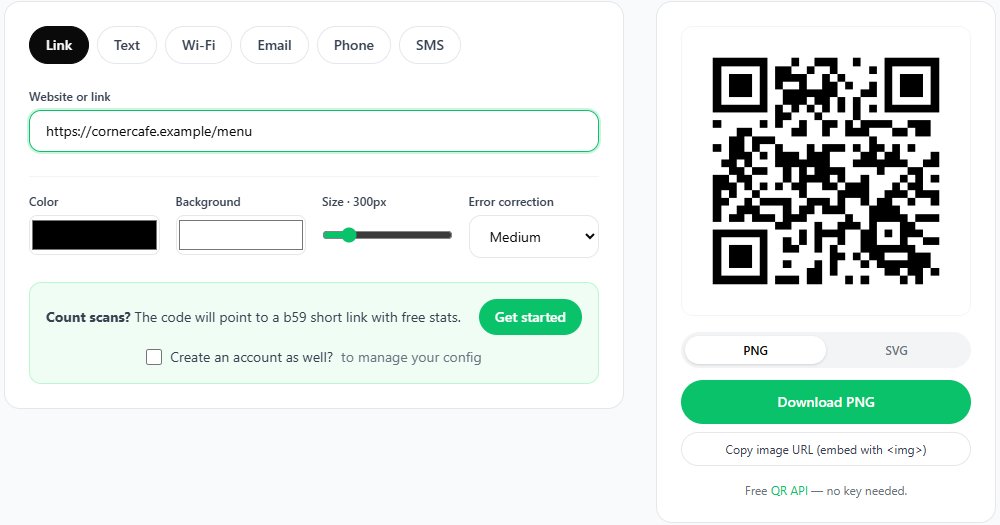
A Wi-Fi sign for the counter
Type the guest network's name and password. The page checks them for the characters that stop phones joining and prints a sign at the size that scans from where it hangs. The password stays on your computer.
Make a Wi-Fi sign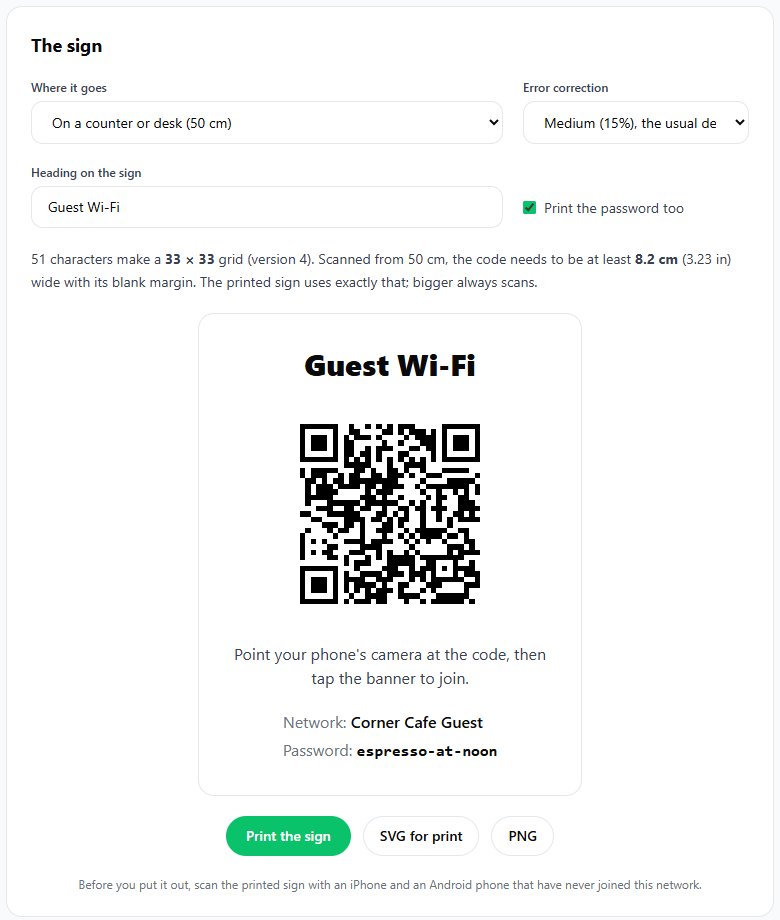
A code that fits on your card
Type the details for your business card and see whether the code fits on an 85 × 55 mm card, or use a short link to a contact page you can update without reprinting 500 cards.
Make a contact code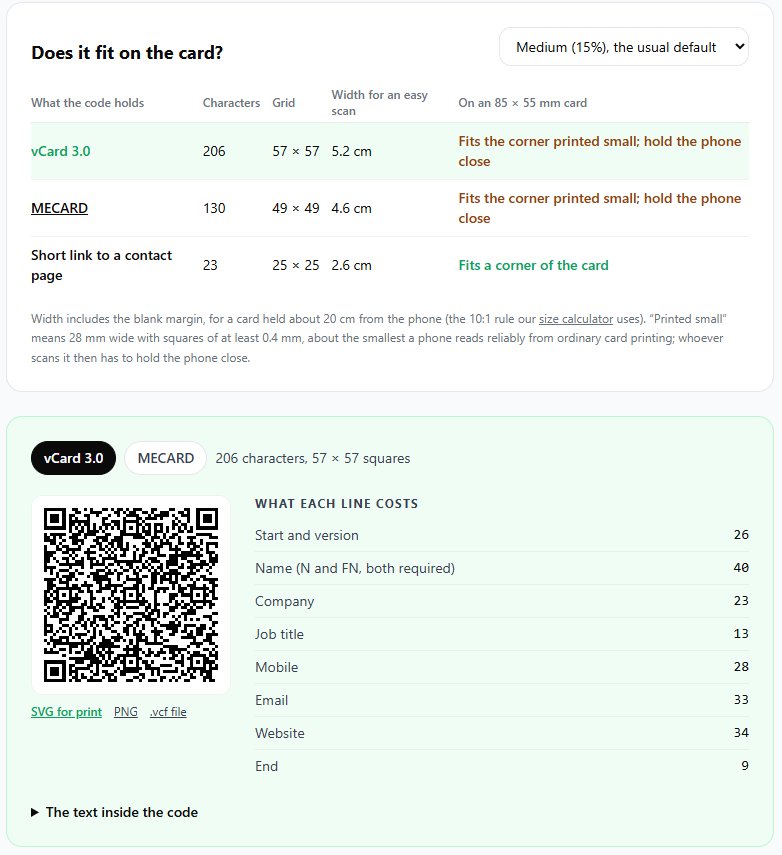
Three steps, then forget about it
- 1
Make it
Paste a link in the QR maker and turn on counting. Sign in if you want to change it later; only your account can edit it.
- 2
Check it
Print one copy and scan it with two phones. The print size calculator tells you how big it needs to be for the distance.
- 3
Change it any time
New menu, new offer, new booking page: change where the code points in My links. The printed codes carry on working.
More on why the codes keep working, and when a plain code is the better choice: QR codes that never expire. Sizes for signs and posters: print size calculator.
Your next print run starts with one code
No account needed to make one. Sign in when you want to change it later.
Make a QR code