You're in a chat with your AI assistant, working through next week's launch: the announcement post, the newsletter, a flyer for the counter. Each of those needs a link. So you open another tab, make a short link, copy it, come back, paste it, and do that four more times.
That's a chore the assistant can do itself, if it's allowed to reach the link shortener. b59.link has a door for exactly that. Here's how to open it, what comes through, and where it stops.
What MCP is, in two sentences
The Model Context Protocol is a common way for AI assistants to use outside tools. A service publishes a list of things it can do, each with a name and a description, and any assistant that speaks the protocol can read the list and call them during a conversation.
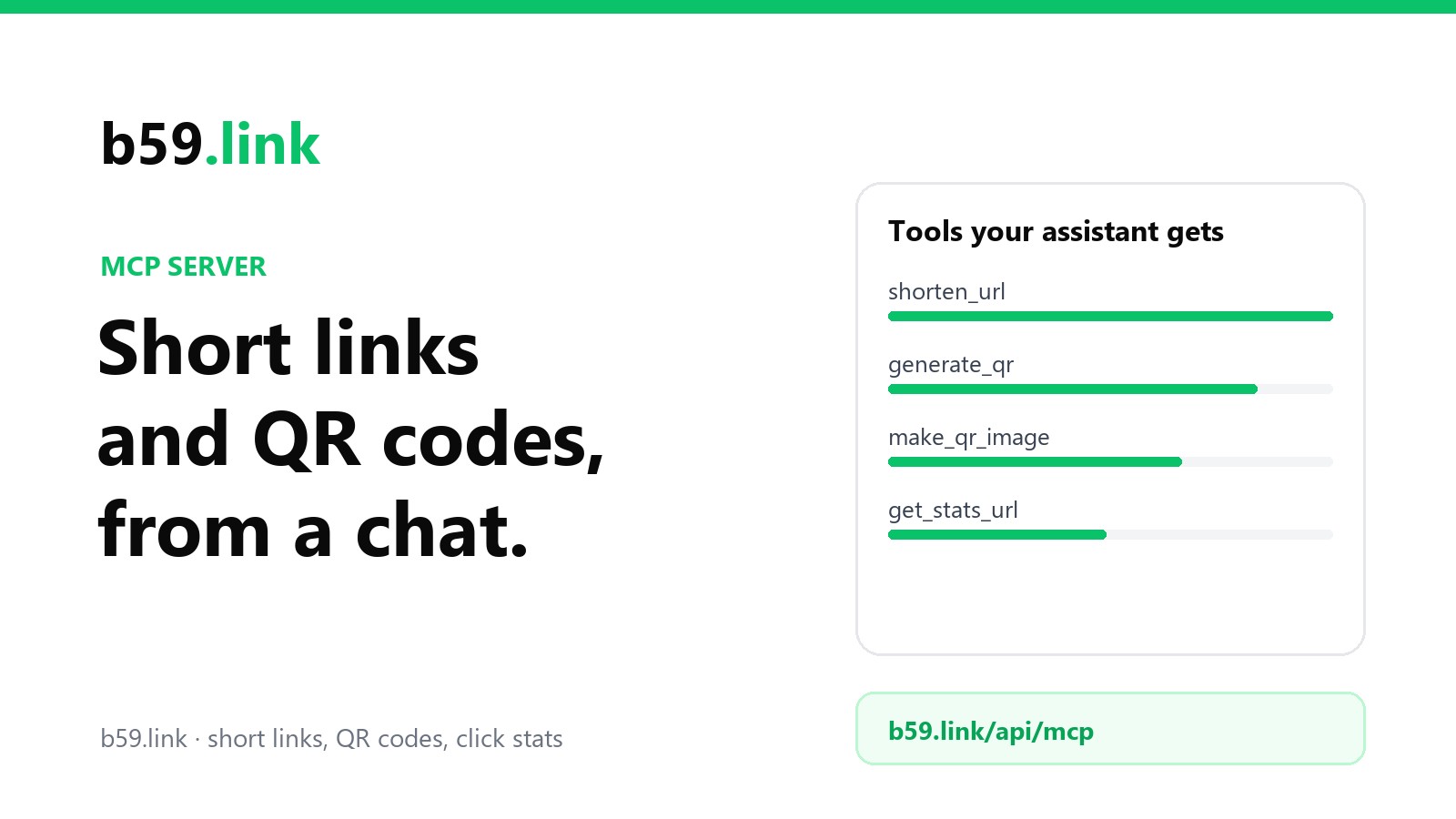
b59.link's list lives at one address:
Connecting it
How you add a server depends on the assistant, but it comes down to one of two things.
In a chat app, look in the settings for "connectors", "integrations" or "MCP servers", choose to add a custom or remote one, and paste the address above. There's nothing to install.
In a coding tool or a desktop app with a config file, add an entry like this:
The exact steps for the common assistants, and a ready-made tool list for models that use function calling instead of MCP, are on the MCP setup page. (That short link was made through the server while writing this article. You'll see it again below.)
It works straight away, without an account. That's enough to try it. For regular use you'll want the session key, which gets its own section.
What the assistant can now do
Seven tools. You never type their names; you ask in plain words and the assistant picks.
shorten_url makes a short link for an address, with a name you choose or a random one, and returns the link and the address of its stats page.
generate_qr makes a short link and a QR code of it in one go, so scans are counted.
make_qr_image makes a QR code of any text you give it, with no short link behind it: a web address, a Wi-Fi login, a phone number. You can set the colours, the size and PNG or SVG.
lookup_url checks whether an address already has a short link, allowing for www, http and a trailing slash.
get_stats_url finds the stats page for a link, a QR code or a tracked site.
create_tracker sets up a page-view counter for a website and returns the snippet to paste into its pages.
auth signs you in. More on that shortly.
A real exchange
We asked for one link, in the kind of sentence you'd actually type:
The assistant turns that into a call to shorten_url. This is what went over the wire and what came back, copied from the live server:
You don't see any of that in the chat. You see a sentence with the short link and the stats link in it. Then we asked for a QR code of the new link, 600 pixels wide, and make_qr_image returned a PNG along with an address for the image that can go straight into a web page:
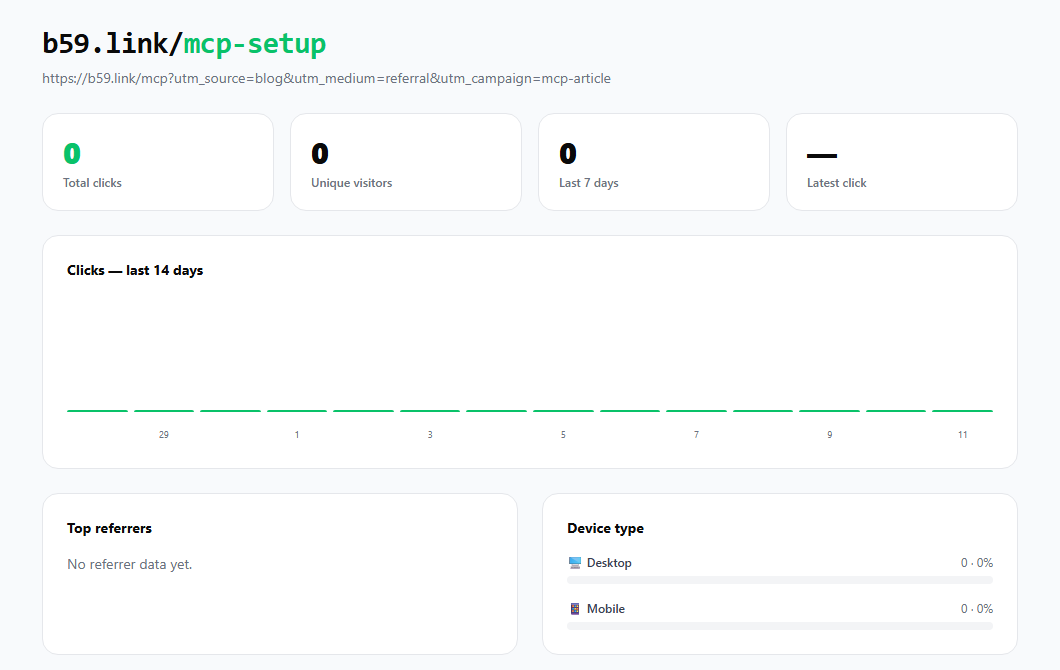
The link is real: b59.link/mcp-setup forwards to the setup page, and this is its stats page a few minutes after it was made.
The session key
Without signing in, the server allows two requests a minute, with a little slack at the start so an assistant can connect and read the tool list. Two a minute is fine for one link. It isn't for "make me five". In a hosted chat app there's a second catch: the calls come from the app's servers, not from your computer, so that small allowance may be shared with other people using the same app.
Signed in, the limit is 300 a minute, and the links and trackers you make belong to your account, so they show up under My links on the site and you can manage them there.
Signing in happens inside the conversation, in two steps, through the auth tool:
The code is good for ten minutes. If the email is new, that's also the sign-up: there's no form to fill in and no password to invent.
Now the part people miss. The assistant has been handed a key, but the server can't make the assistant's app remember it. For the higher limit to apply, the key has to be sent with every request, and that's a setting in the app, not something said in the chat. In a config file it's one more line:
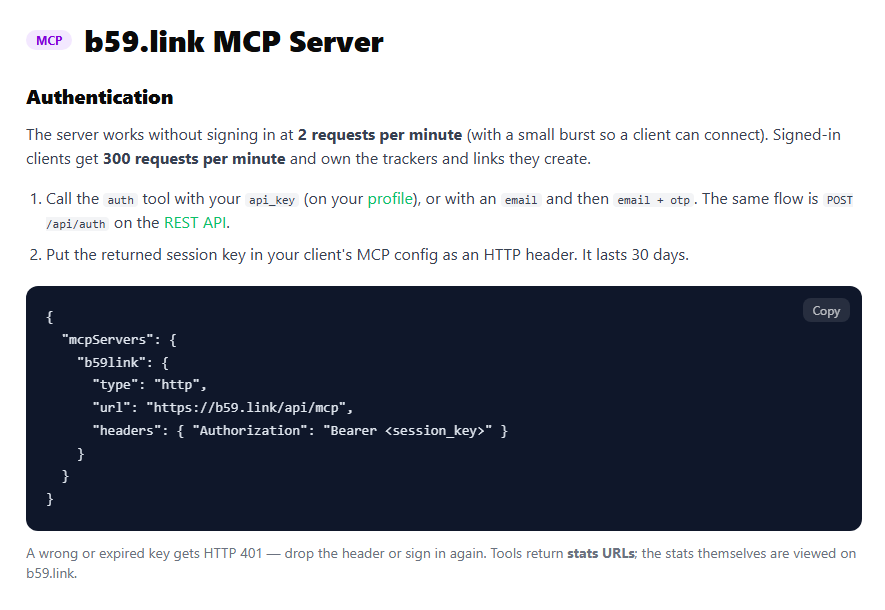
If your app's settings have no field for a custom header, you can still connect, but you stay on the two-a-minute allowance. That's a limit of the app, and it's worth knowing before you plan a big batch.
Treat the session key like a password. It will be sitting in the chat history where the assistant printed it, so don't share that conversation. The six-digit code is harmless once used. After 30 days the key stops working and requests fail with a 401 error; sign in again and replace it.
Things worth asking for
"Here are the five places I'm announcing this. Tag the address for each one and make a short link for each, named launch-newsletter, launch-linkedin and so on." This is the job it's best at: dull, repetitive, and easy to get subtly wrong by hand.
"Make an SVG QR code of our menu address in dark green on white, 1000 pixels." SVG is what a print shop wants.
"Does our pricing page already have a short link?" Handy before you create a second one by accident.
"Set up a page-view tracker for example.com and give me the snippet for the footer."
Where it stops
A tool like this is only useful if you know its edges, so here they are.
It gives you the stats page, not the numbers. Ask "how many clicks did the newsletter link get?" and the honest answer from the assistant is a link to the page where you can see. The tools return addresses of stats pages; none of them returns counts. If an assistant gives you a number anyway, it made it up.
One short link per address. If an address already has a short link, shorten_url hands back the existing one and quietly ignores the new name you asked for. So you can't make five short links to the very same address. For one link per channel, the addresses have to differ, which is what the utm_source tags do anyway. The reasoning is in one short link per flyer, post and podcast.
It creates; it doesn't edit or delete. There's no tool to change where a link points or to remove one. Changing a destination is done on the website, and only for links made while signed in.
A taken name is an error, not a near miss. Names can use letters, digits, hyphens and underscores, up to 100 characters. If launch is taken you're told so; the assistant will usually suggest another and try again.
QR images have bounds. Up to 1,500 characters of content, 64 to 1,200 pixels, PNG or SVG. Some chat apps show the image in the conversation; others show only the image address, which you can open or paste into a page.
Two kinds of QR code, and the difference matters in print. generate_qr puts the short link in the code, so scans are counted and the code depends on the short link. make_qr_image puts your own address in the code, so nothing is counted and nothing stands in between. For anything that will be in print for years, read what to encode on packaging first.
Read the destination back before you print. Assistants are good at this and still, now and then, drop a character from a long address. Click the new link once and look at where you land, every time, before it goes on paper.
For developers: the server speaks JSON-RPC 2.0 over plain HTTP POST and answers in JSON, with no streaming and no batch requests. It reports protocol version 2024-11-05 and supports initialize, tools/list, tools/call and ping. The same tool list is published in function-calling format at /api/mcp/schema, and everything the tools do is also in the REST API.
Sources: the Model Context Protocol documentation; the b59.link MCP page and API docs. The requests and responses shown were run against the live server in October 2026, without signing in. The sign-in exchange is an illustration of the two auth calls, with a made-up email and code.
The address to paste, the config for the common assistants, and every tool with its parameters.
Open the MCP setup page