The usual way to get a QR code onto a page goes like this: open a generator, type the link, download a PNG, upload it somewhere, paste the address into your template. Then the link changes and you do it again. For a ticket email where every person gets their own code, you don't do it at all, you go looking for a library.
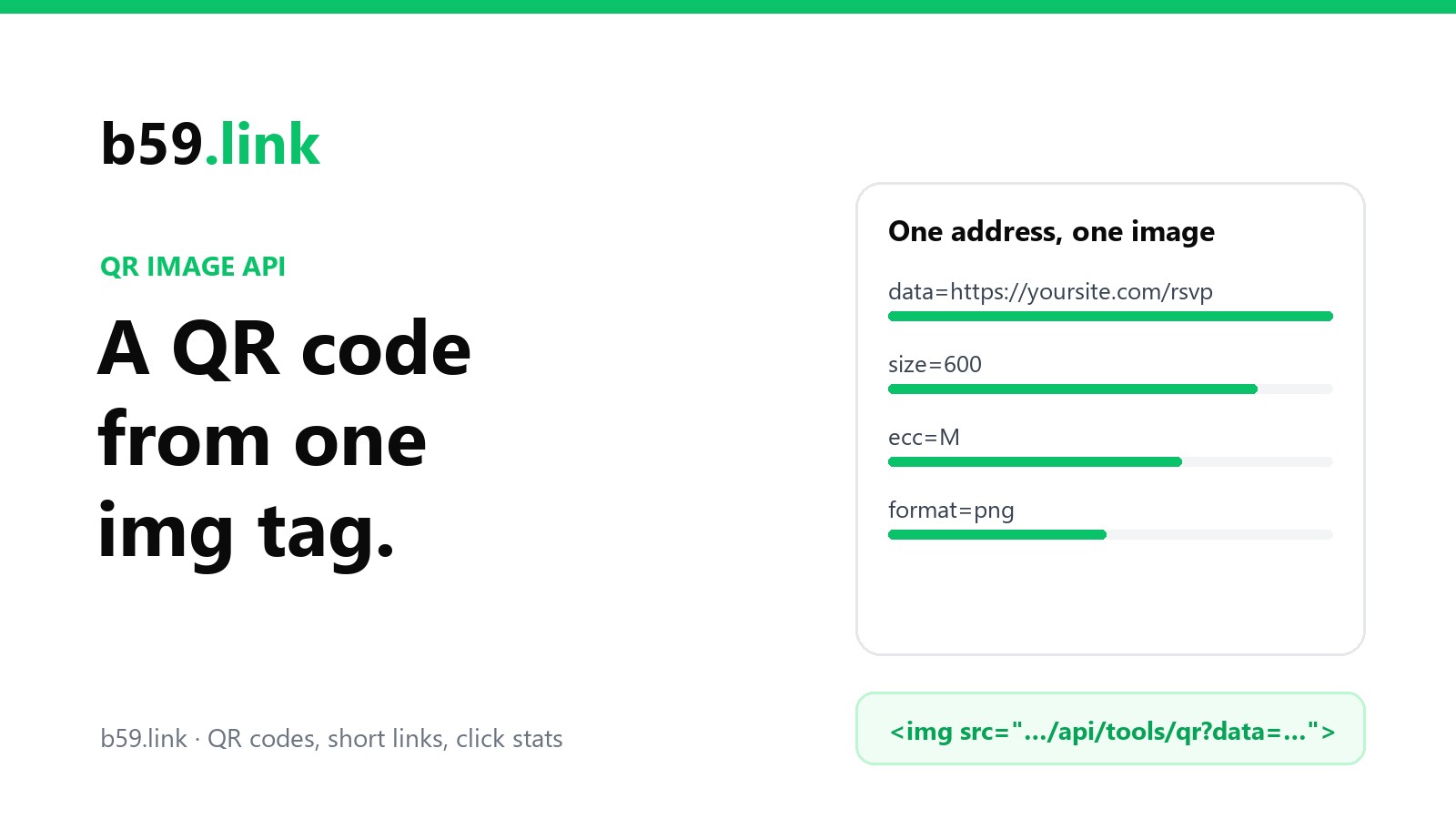
There's a shorter way. A QR code is just a picture of some text, so the picture can be made on request by the address you ask for it from. Put the text in the address, put the address in an img tag, and you're done:
That's the free QR image API on b59.link. No key, no account, no script on your page. The code it draws is a plain one: it holds exactly the text you gave it and nothing of ours, so what it opens when scanned doesn't depend on us. (Why that matters is in what we found inside 77 generator codes.)
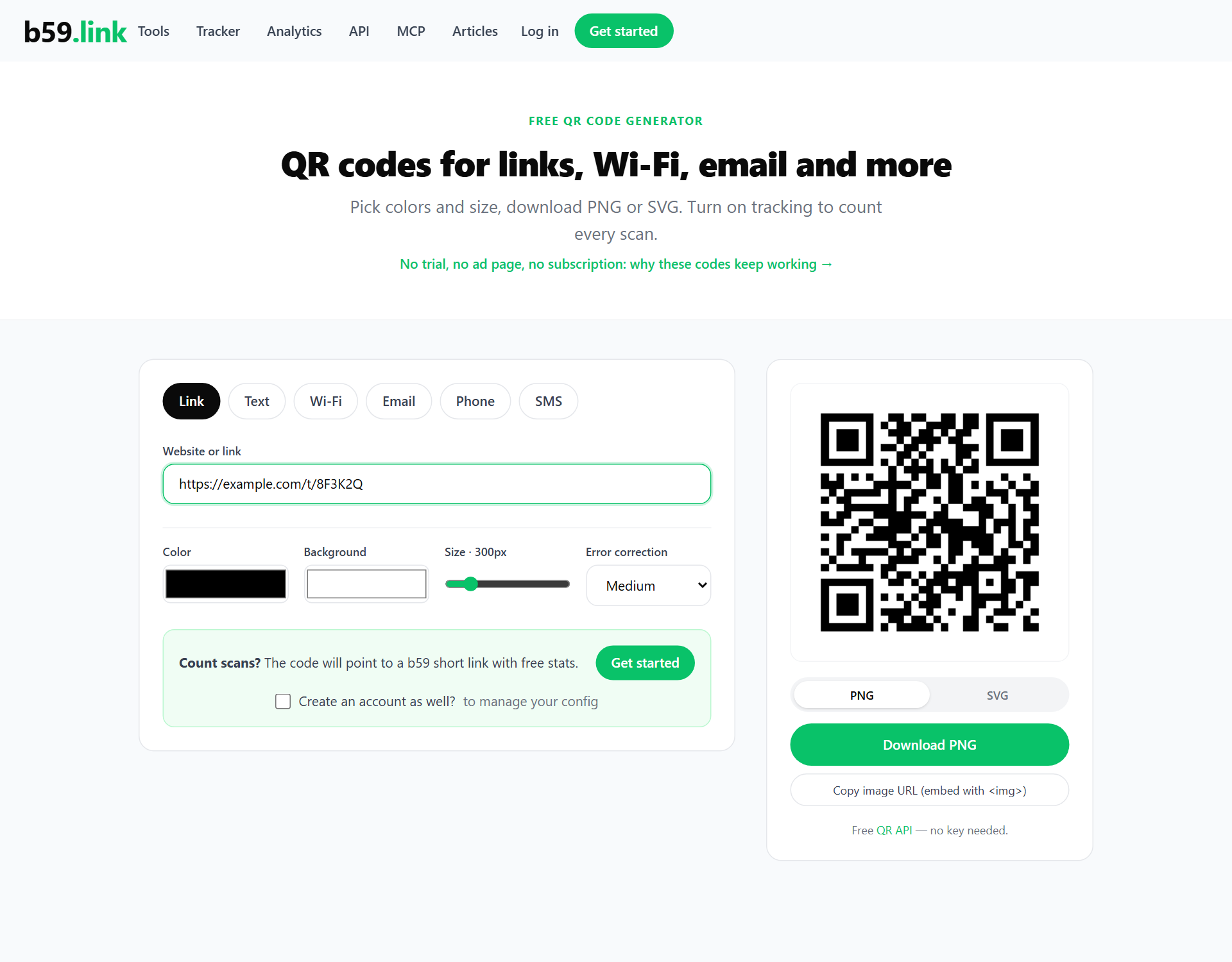
The parameters, and the two that trip people up
Encode the data. This is the mistake nearly everyone makes once. If the link you're encoding has its own ? and &, they have to be percent-encoded, or everything after the first & is read as a parameter of the image address and silently dropped from the code. The code still scans. It just opens the wrong page.
Every language has a function for it: encodeURIComponent in JavaScript, urllib.parse.quote(link, safe="") in Python, rawurlencode in PHP. In a mail-merge tool, look for a "URL encode" filter on the merge field.
Ask for twice the pixels you show. The size you ask for is the exact size of the PNG. Phones and most laptops have screens with two or three device pixels per CSS pixel, so a 200-pixel image shown at 200 pixels looks soft. Ask for size=400 and show it at width="200". The cost is close to nothing: the 300-pixel PNG for a short link is about 1.2 KB, the 600-pixel one about 2.4 KB. QR codes compress very well.
A few smaller things. Leave margin at 4 unless you're adding your own white space around the image; scanners need that blank border. Leave ecc at M for anything shown on a screen: higher levels are for codes that get scratched or have a logo over them, and they add squares, which makes each one smaller. A color that isn't valid hex falls back to the default without an error, so if your brand green comes out black, check for a stray #. And keep the squares darker than the background. A light code on a dark background looks good and fails on some scanners.
On a web page
On a page you control, both formats work. Use format=svg when the code might be printed from the page or zoomed (an invoice, a boarding pass, a label sheet), because it stays sharp at any size. The SVG for a short link is about 4 KB. Use PNG when the image may be copied into other things.
One HTML detail: inside an attribute, a literal & should be written &. Browsers forgive it; some template engines and validators don't.
Always set width and height. Without them the page jumps when the image arrives, and a person who was about to tap something taps something else.
In an email: PNG, a hosted address, and a plan for blocked images
Email is where an image address earns its keep, and also where three things go differently from the web.
Use PNG. SVG support in mail apps is patchy. In the tests on caniemail.com, older Outlook for Windows (2007 to 2016) doesn't show SVG images at all, and Gmail shows them only after turning them into a PNG itself. PNG works everywhere.
Use a real address, not an embedded image. The other trick people try is pasting the image into the HTML as a base64 data: address. Gmail doesn't display those, and neither does most of desktop Outlook. An ordinary https:// image address is the thing that works in every client, which is exactly what the tag above is.
Assume some readers won't see it. Desktop Outlook blocks pictures from the internet by default and shows a bar asking the reader to download them. Gmail shows images by default, but anyone can switch on "Ask before displaying external images", and plenty of company mail systems do it for everyone. A blocked image leaves an empty box with the alt text in it. So the alt text is not a formality here, and neither is a plain link next to the code:
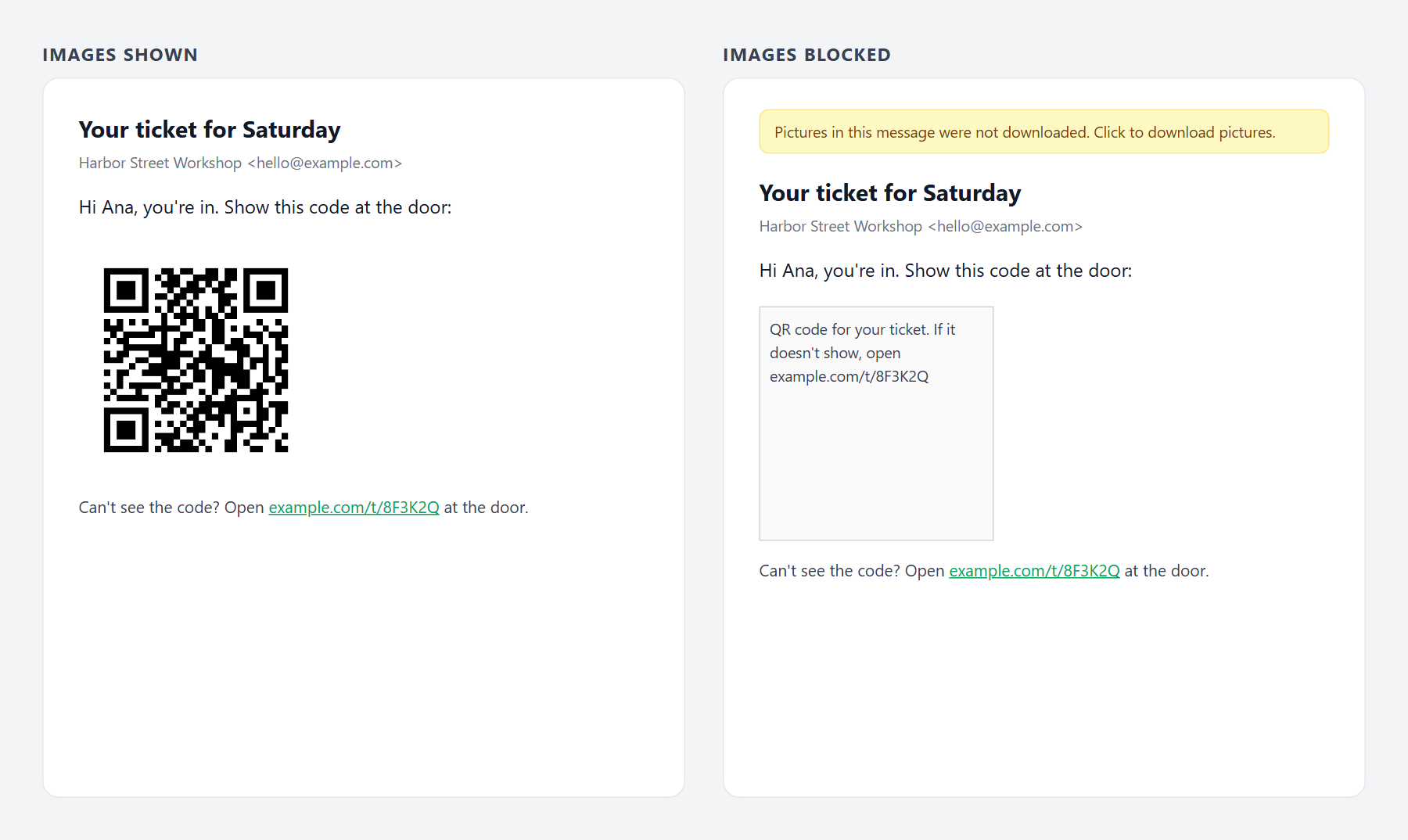
Two more email habits worth keeping. Keep the background white, with the margin, even if your template is dark: some apps recolor a message in dark mode, and a code sitting on its own white square survives that. And think about who's scanning. A QR code in an email read on a phone can't be scanned by that same phone, so on mobile the code should also be a link, or sit beside one. A code in an email makes sense when it'll be shown to someone else's scanner (a ticket, a pickup, a check-in) or read on a laptop and scanned with a phone.
When to stop hot-linking
The image address is made for pages, signatures, internal tools and one-to-one messages: an order confirmation, a ticket, an invoice. There are two cases where you should fetch the image once and keep your own copy instead.
A send to a whole list. Mail apps don't always fetch images from the reader's device. Gmail fetches them through Google's own image proxy, and Apple Mail with Mail Privacy Protection downloads them in the background through Apple's. To the image server, a few thousand readers look like a few addresses asking for a lot of images at once. Without a key, the b59.link API answers only a few requests a minute from one address (the numbers are in the API docs), so in a big send some readers would get a broken image. For a newsletter, download the PNG and upload it with the rest of your email images.
Anything that has to work for years. A code printed on packaging or in a manual shouldn't depend on any image address, ours included. Download the SVG, keep the file. The code itself holds your link and needs nobody's server; only the hot-linked picture of it does.
For per-person codes at volume (a few thousand tickets), make them when you send, not when the mail is opened: sign in to the API for the higher limit, fetch each PNG once, and store it on your own host or attach it. Responses are sent with a one-day cache header, and the same address always gives the same picture, so you only ever need to fetch each one once.
Before you send it
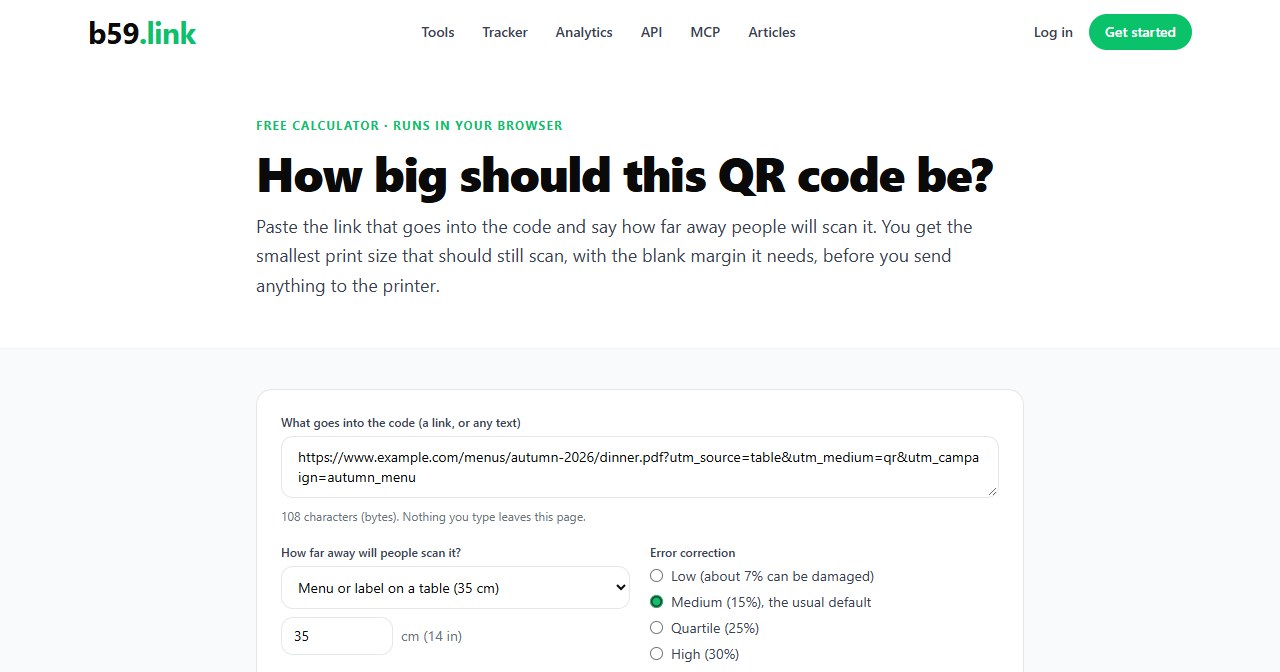
Scan the code from the actual email on the actual screen, not from the generator. Check that it opens the full link, with everything after the &. Turn images off in your mail app and read what's left. If the code will be printed as well, the size rules are different on paper; they're in printing a QR code that scans. And if you want to know how many people scanned, encode a short link instead of the page address, one per place the code appears, and read the count from its stats page.
Sources: Can I email, SVG image format and Base 64 image format; Microsoft Support, Block or unblock automatic picture downloads in email messages; Gmail Help on showing or blocking images. Sizes and limits are from requests to the live b59.link API in October 2026.
Type a link, pick colors and size, and copy the image address for your page or email.
Open the QR generator